# Parrot Set Oraxen Guide

<mark style="color:yellow;">**Parrot**</mark>[ <mark style="color:yellow;">**Set product page**</mark>](https://mcmodels.net/products/14633/dinosaur-set)

### **Installation Guide for Oraxen Plugin (Step - 1)**

After purchasing the product, when you download the product file, you will see a zip file.

Follow these steps: Configurations/Oraxen

<figure><img src="https://3260024981-files.gitbook.io/~/files/v0/b/gitbook-x-prod.appspot.com/o/spaces%2FCGmkprrQ3dwpohNpIeZW%2Fuploads%2FLjxkit3CCdk1gD7VOlAe%2FScreenshot_5.png?alt=media&#x26;token=381ef8d4-7a33-4eb2-b0bf-f90f6a5cc142" alt=""><figcaption></figcaption></figure>

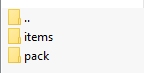
Here we will first drag and drop the files in the items folder to the oraxen plugin file.

<figure><img src="https://3260024981-files.gitbook.io/~/files/v0/b/gitbook-x-prod.appspot.com/o/spaces%2FCGmkprrQ3dwpohNpIeZW%2Fuploads%2FLjxZ1YofhpZ6Z7goNzdr%2FScreenshot_12.png?alt=media&#x26;token=417c635b-40a3-4e9a-9f14-46e2f5e8bdb2" alt=""><figcaption></figcaption></figure>

Follow these steps: plugins/Oraxen/items

<figure><img src="https://3260024981-files.gitbook.io/~/files/v0/b/gitbook-x-prod.appspot.com/o/spaces%2FCGmkprrQ3dwpohNpIeZW%2Fuploads%2FGfQohCqz2A8oSI8ao5ua%2FScreenshot_7.png?alt=media&#x26;token=684713ac-1597-439f-b048-16aa2487ac36" alt=""><figcaption></figcaption></figure>

We will just drag and drop the .yml files in the items folder in the zip file here.

<figure><img src="https://3260024981-files.gitbook.io/~/files/v0/b/gitbook-x-prod.appspot.com/o/spaces%2FCGmkprrQ3dwpohNpIeZW%2Fuploads%2F1suPi1PDqOPAGENHOFxA%2FScreenshot_13.png?alt=media&#x26;token=a0938104-3b4c-4c32-8650-0f275d8e3847" alt=""><figcaption></figcaption></figure>

### **Installation Guide for Oraxen Plugin (Step - 2)**

Now we will drag and drop the models and textures in the pack folder.

Follow these steps: Configurations/Oraxen/pack/models/parrotset

We will drag the model files you see here into the plugin file.\
Follow these steps: plugins/Oraxen/pack/models

<figure><img src="https://3260024981-files.gitbook.io/~/files/v0/b/gitbook-x-prod.appspot.com/o/spaces%2FCGmkprrQ3dwpohNpIeZW%2Fuploads%2FDR5nL2xxYaXQkHOR5sEp%2FScreenshot_9.png?alt=media&#x26;token=d74a9c3a-dd83-4ed5-a9fb-da8264d55561" alt=""><figcaption></figcaption></figure>

We will drag and drop the models folder (parrotset) in the zip file here

<figure><img src="https://3260024981-files.gitbook.io/~/files/v0/b/gitbook-x-prod.appspot.com/o/spaces%2FCGmkprrQ3dwpohNpIeZW%2Fuploads%2FRy4xlHrEnolOSMPIZzZO%2FScreenshot_14.png?alt=media&#x26;token=61e6420f-57b0-4bb0-b700-5f0a6ff97083" alt=""><figcaption></figcaption></figure>

The models are complete, now we will move the textures.\
Follow these steps: configurations/Oraxen/pack/textures/parrotset

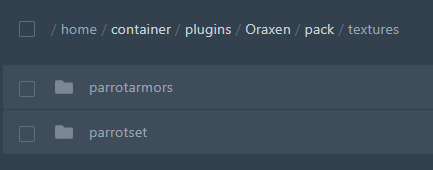
Now you will see two folders here, "parrotarmors" and "parrotset"

<figure><img src="https://3260024981-files.gitbook.io/~/files/v0/b/gitbook-x-prod.appspot.com/o/spaces%2FCGmkprrQ3dwpohNpIeZW%2Fuploads%2Fj05jX1DHBupscWvZVhcN%2FScreenshot_16.png?alt=media&#x26;token=210b054d-f11e-4efb-ac19-2cb9a4645353" alt=""><figcaption></figcaption></figure>

We will drag these two texture folders to the plugin folder.

Follow these steps: plugins/Oraxen/pack/textures

<figure><img src="https://3260024981-files.gitbook.io/~/files/v0/b/gitbook-x-prod.appspot.com/o/spaces%2FCGmkprrQ3dwpohNpIeZW%2Fuploads%2FO7OpEnh5Dn7gH3Bbn414%2FScreenshot_15.png?alt=media&#x26;token=7eadfca1-dd6f-43ee-b83e-b65d92bfa2f3" alt=""><figcaption></figcaption></figure>

The process is complete, now all you have to do is continue enjoying the game using the /"oraxen reload all" command.